
GRADEX GASTRO · POS, STOCK AND RECIPES IN ONE
The restaurant system that keeps track of tables, stock, recipes, sales and bookings
Touchscreen order entry, bill splitting, table reservations, recipes with automatic stock deduction, butchery breakdown, goods receiving and stocktakes. For restaurants, canteens, hotels and hospitals, in Easy, Standard and Enterprise editions.
Robust software from the makers of GradexERP and GradexLINK · REST API and Resora integration · building business software since 1996
- Free table
- Open bill
- Reservation coming up
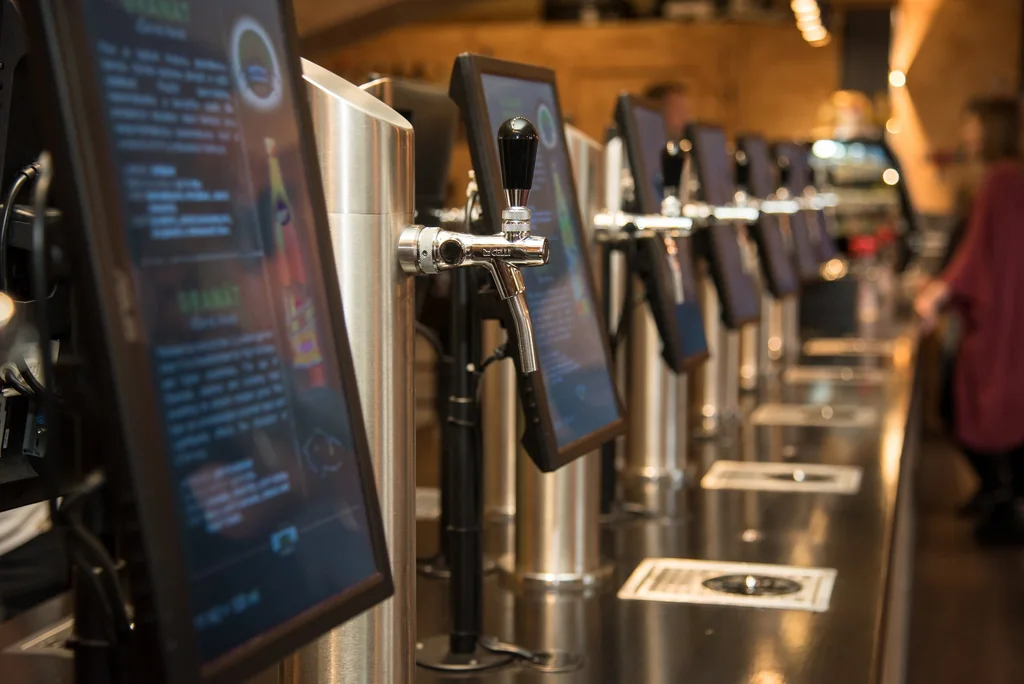 In action: Beerpoint Prague
15
modules in one system
21
configurable access rights
4
price levels by table type
customer, staff, special and zero price
3
editions: from a single till to multiple venues
Who it's for
For restaurants, canteens, hotels and hospitals.
Gradex Gastro fits anywhere food is cooked and sold and the stock has to add up.
Restaurants, cafés and bars
Fast order entry on a touchscreen till, table map, bill splitting, table reservations and a connection to self-service beer taps.
References: Beerpoint Praha
Canteens
Catering operations, including university halls of residence. Daily menus with validity periods, recipes scaled to any number of portions, precise ingredient records and integration with the Resora system for managing halls of residence.
Online meal ordering →References: Kolej Kateřinská Olomouc
Hotels and spas
Restaurant, bar and terrace as separate areas, each with its own table map. The guest directory also holds hotel guests with their room number, and the system is integrated with the Resora hotel software.
References: Hotel Karlín, Hotel Zvíkov, Lázeňský resort Bojnice
Hospitals
Catering with rigorous record-keeping: recipes, goods receiving, stocktakes and access rights for every role.
Overview
One system for the floor, kitchen, bar and back office.
Gradex Gastro covers the whole cycle of your operation: from receiving ingredients, through the recipe and the order at the table, to the receipt, the till close and the invoice. No data is retyped between programs; everything is connected.
Book a demoService
Waiter POS menu, table map, bill splitting, reservations and receipts on a touchscreen till.
Kitchen and stock
Recipes, butchery breakdown, goods receiving, stock issue notes, stock transfers and stocktakes.
Management and finance
Tills and till closes, payments, discounts, menus and invoicing.
People and partners
Employees and their rights, suppliers and the guest directory.
IN ACTION · BEERPOINT PRAGUE
EnterpriseGuests pour their own. The taps connect straight to Gradex Gastro.
Beerpoint Prague is an interactive beer bar in the centre of Prague. Guests top up an NFC card, hold it to a tap and pour their own beer. On the tap’s display they watch, in real time, their credit go down and their spend and the amount poured go up, just like at a petrol pump. The self-service beer taps are connected directly to Gradex Gastro.
GradexSoft also developed the software for the taps themselves and the control of the sensors and valves for this venue. It is a complete solution, from tap to till.
pouring
- Credit
- 240 Kč
- Spend
- 60 Kč
- Poured
- 300 ml
Illustrative animation of the principle. Values are not Beerpoint prices.
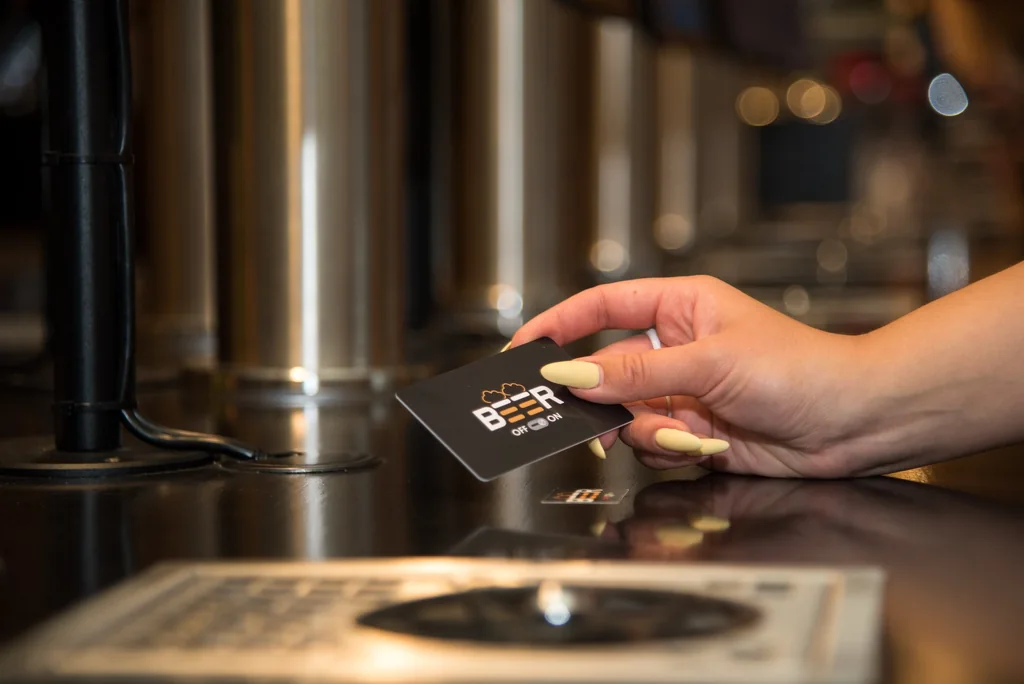
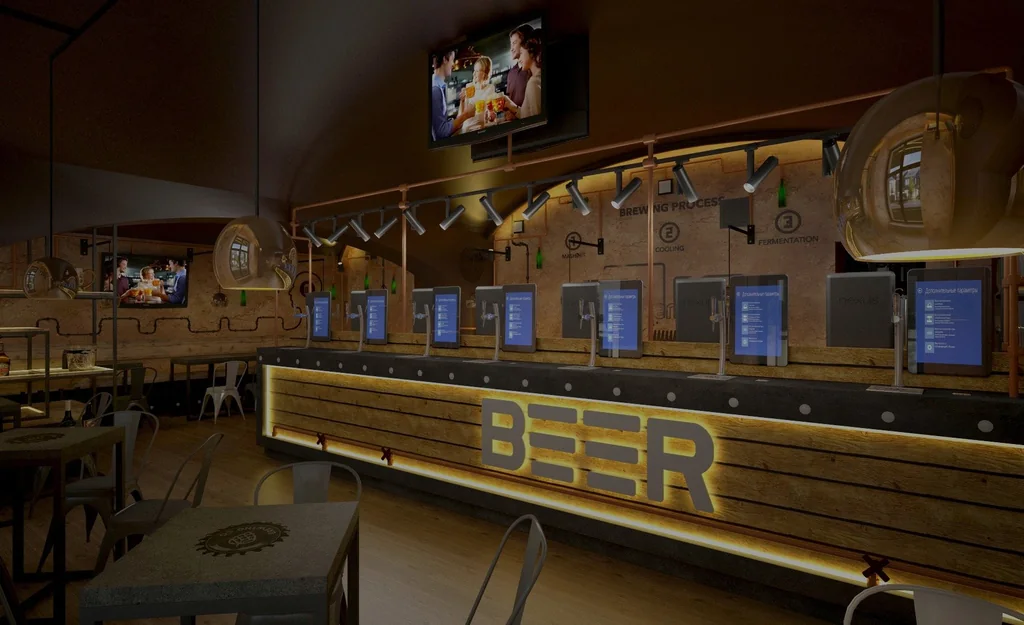
Photos: Beerpoint Prague
How it works
- 1Topping up: the guest tops up an NFC card with credit.
- 2Holding the card to the tap: they hold the card to the tap of their choice. The touchscreen shows information about the beer.
- 3Pouring: they pour their own. On the display, in real time, the credit goes down while the spend in Kč and the amount in ml go up.
- 4In the system: the taps are connected directly to Gradex Gastro.
- Topped-up NFC card
- A display at every tap
- Credit, Kč and ml in real time
- Connected to Gradex Gastro
Table map
EasyStandardEnterpriseYour whole floor on one screen.
Waiters see every table exactly where it stands in the restaurant. Colour shows where a bill is open, and a waving-hand icon flags a reservation that is coming up. One tap and they are at the table, taking the order.
- Several areas (ground floor, terrace, private room, bar) that waiters switch between straight from the map.
- Place tables with the mouse, then fine-tune position and size down to a single point.
- The table type sets the price: customer, staff, special or zero.
- Give waiters access to their own section only.
- Tables with history do not need deleting; just hide them as inactive. A locked table cannot be moved by mistake.
Waiter POS menu and order entry
EasyStandardEnterpriseOrders in a few taps. Even at peak time.
The waiter POS menu is built for touchscreens: large buttons, categories that follow your menu and no unnecessary steps. Table, items, done.
- 1
Pick a table
Tap a table on the area map. White is free; red has an open bill. Open other areas, such as the terrace, by tapping the area name at the bottom. The areas on offer depend on the waiter’s rights.
Gradex Gastro · Table map · Ground floor - 2
Ring up the items
The categories in the bottom bar switch the items shown above. Tap an item to add it to the table’s bill. Kitchen and bar tickets print by themselves according to the preparation area.
Gradex Gastro · Table 22 · Salads - 3
Check the order
Tap the box showing the items just rung up to open the order detail: quantity, void, print, move to another table and the receipt. The Stůl (Table) button takes you back to the map.
Gradex Gastro · Order · Table 22
Order entry examples
Example
3× Gambrinus
The “1” button is a multiplier. Each tap adds one, so two taps mean three items.
On the bill: 3× Gambrinus
Example
10× vodka for a group
For larger numbers of the same item, enter the quantity with the calculator.
On the bill: 10× vodka
Example
Quick sale at the bar
The “$” button prints the receipt for the active table without opening the order detail.
Receipt printed
Example
A void that leaves a trace
A void does not overwrite history. It creates a new line with a negative value. Access rights determine who may void.
On the bill: the line and its void
Items and whole categories are shown according to their validity period. “Sunday coffee” appears on the menu only on Sundays.
Bill splitting
EasyStandardEnterpriseSplit. Merge. Move. No scraps of paper.
Guests want to pay separately, a group moves to a bigger table, a colleague takes over the shift. You handle it all right in the order detail.
Example: four friends at table 22, two paying separately
- 1Open table 22 and tap Split order (Rozdělit objednávku) in the order detail.
- 2Move the second couple’s items to a new order on the same table.
- 3The indicator at the top right changes to 1/2. Use the Next order button (Nalistovat další objednávku) to switch between bills.
- 4Print a separate Receipt (Účtenka) for each couple.
Guests would rather not come to the till
Bring a printout of the order to their table and split the bill on the spot.
A group moves
Move the order to another table. The bill goes with the guests.
One bill for the whole table
Merging a table’s orders combines all its bills into one.
Shift change
Changing the user logs one waiter out and the next one in, for example with a card.
- Add another order to the table
- Combined bill
- Takeaway sales
- Waiter’s till balance
Table reservations
EasyStandardEnterpriseReservations without double booking.
Reservations are entered directly against specific tables. The timeline shows occupancy hour by hour, and the Časové konflikty (Time conflicts) button reveals clashes before they happen.
Example: a party of 15, Saturday 17:00–22:00
- 1In the Reservations module, choose Add (Přidat) and set the start and end: date and time from–to.
- 2Pick the guest from the directory, the table and area, the number of seats (15) and a note if needed. The reservation also shows the employee who took it.
- 3Time conflicts (Časové konflikty) checks whether the table has another reservation at the same time.
- 4As the reservation approaches, a waving-hand icon appears at the table on the map, so staff will not give the table to anyone else.
- You can also create a reservation straight from an order with the New reservation button (Nová rezervace).
- The timeline shows table occupancy for the selected area. You set the time step and the number of rows displayed.
- Copy a reservation with a single button.
- Guest directory: private individuals, companies with their registration and VAT numbers, and hotel guests with their room number.
Recipes and food cost
StandardEnterpriseEvery dish sold deducts its own ingredients.
Define a recipe for every dish and drink. On each sale the system automatically deducts the ingredients from the preparation area’s stock and shows what a portion really costs you.
- Sales document
- Product receipt from the preparation area
- Ingredient issue according to the recipe
- 1
Mark the card as a recipe
For a dish or drink, tick Receptura (Recipe) and choose the recipe type and preparation time. In the Přípravna (Preparation area) panel, set whether it is prepared in the kitchen or at the bar. That determines where tickets print. Staff and special prices apply at tables of the matching type.
Gradex Gastro · Recipe · Preparation area - 2
Find and drag in the ingredients
Type part of a name into the search box, say “těstov”, and drag the ingredient into the recipe with the mouse. The cursor turns into a fork with a morsel as you do. A missing ingredient can be created right from here.
Gradex Gastro · Recipe · Available ingredients - 3
Enter portions and quantities
Set how many portions the recipe is for (1, 10 or even 3.5) and fill in the ingredient quantities. The system calculates to five decimal places. Ideal for canteens: enter a recipe for 100 portions just as the chef knows it.
Gradex Gastro · Recipe · Portions and quantities - 4
Check the food cost
The totals show the purchase price and actual price of the ingredients and the cost percentage, both planned and actual based on average purchase prices.
Gradex Gastro · Recipe · Tagliatelle all'Amatriciana
Where is salt used?
One click finds every recipe that uses the selected ingredient, so you can adjust them all at once. Handy when an ingredient is not being deducted correctly.
Retrospective stock deduction
Added the recipe only after the sale? The Recipe stock deduction function deducts ingredients retrospectively for a chosen period. Dishes and drinks are deducted separately by preparation area.
Copy a recipe together with its ingredients to prepare a variation of a dish quickly. Each ingredient can appear in a recipe only once, and a recipe cannot contain itself. Butchery breakdown is entered in the same window (next section).
Butchery breakdown
StandardEnterpriseA recipe in reverse: exact cuts from a whole carcass.
Butchery breakdown is entered in the same window as recipes. A switch reverses the direction: instead of combining ingredients into a dish, you break one ingredient, such as a whole chicken or a leg, down into individual cuts. Each cut has its own stock card, and the cost of the whole ingredient is allocated to the cuts by weight.
How to do it
- 1The cuts (breasts, thighs, wings, carcass) have their own stock cards, which you create just like ingredients.
- 2In the Recipes window, select the ingredient and use the switch to choose butchery breakdown.
- 3Add the cuts and their weights to the ingredient, just as you add ingredients to a recipe.
- 4The cost of the whole ingredient is allocated to the cuts by weight. A heavier cut carries a larger share of the cost.
- Cuts are ordinary stock cards: recipes, stock issue notes and stocktakes all use them.
- Recipes then work with the real price of the cut, not an estimate.
Recipe
Butchery
The cost of the whole ingredient is allocated to the cuts by their weight.
Goods receiving
StandardEnterpriseGoods receiving in three steps. No retyping.
The goods received note guides you from choosing the supplier to the last line. The cursor always jumps to where you carry on, so you enter goods mostly from the keyboard.
- 1
Choose the supplier
Find the supplier with the search box and confirm. A new supplier can be created right here, without leaving the note. Purchases without a document, from a market for instance, go under the universal supplier.
Gradex Gastro · Goods received note · Supplier - 2
Fill in the header
The system fills in the document number. Choose the date, the time and the storeroom most of the goods will go to. The description is the place for the delivery note number or a note about payment. You can find the document by its description later.
Gradex Gastro · New goods received note - 3
Enter the lines
Type part of the item’s name or code into the Kód (Code) field. Then Enter, quantity, Enter and the price excluding VAT. Enter either the unit price or the total; the system works out the other. No card yet? Create it right in this window.
Gradex Gastro · Goods received note · Lines
One goods received note, several storerooms
For each line you choose the storeroom the goods go to. In the picture, juice and beer go straight to the ground floor and soft drinks to the main store. No extra stock transfers are needed.
Stock issue notes and transfers
They work just like a goods received note. A single stock transfer can move goods between several pairs of storerooms, for example from the main store to both the kitchen and the floor.
Links between documents
From any document you can open the documents related to it: sales documents, receipts from preparation areas and ingredient issue notes.
Print or PDF
Print a stock document on a graphics printer or save it as a PDF.
Stocktake
StandardEnterpriseStocktakes that add up. Even retroactively.
The system prepares the paperwork, calculates shortages and surpluses and, once the stocktake is closed, generates the adjusting document. A stocktake can also be carried out as of a date in the past.
- 1
Create the stocktake
Enter the exact date, time and storeroom. The system calculates the book quantities of all cards as of that moment.
Gradex Gastro · Stocktake · New - 2
Print the blind count sheet
The blind count sheet lists only names, barcodes and item types, with no quantities. You write the actual quantity on it by hand at the shelf. The sheet can be filtered just like the stocktake, for example to the bar only.
Gradex Gastro · Print · Blind count sheet - 3
Enter the actual counts
In the Skutečná (Actual) column, type only where the quantity differs from the book figure. The system calculates the difference and you add a note to it, such as “Nález na baru” (found at the bar). Several people can work on the same stocktake at several workstations at once.
Gradex Gastro · Stocktake · Entering actual counts - 4
Close the stocktake
After a double confirmation the stocktake is closed and archived, and the system generates a document that balances the shortages and surpluses.
Gradex Gastro · Stocktake · Closing
Looking for where a shortage arose?
From the stocktake, one button shows a card’s running balances, so you can see whether the missing goods are sitting in another storeroom. The První minus (First minus) function finds the movement that took the item below zero. Print the stocktake list or save it as a PDF; zero items can be left out.
Stock cards and documents
StandardEnterpriseStock where you know where everything came from.
Every area is also a storeroom. Goods received notes, stock issue notes and stock transfers are linked to sales, so you can trace the origin of every movement.
- Several barcodes on one card, output and input VAT with validity periods.
- Minimum stock keeps watch over what is running low.
- A discount ban for fixed-price goods such as tobacco.
- Yield and food cost for any period in one click.
Control and access rights
EasyStandardEnterpriseEveryone can do exactly what they should.
Set 21 access rights by ticking boxes. For a new waiter, just choose the “Číšníci” (Waiters) group and their rights are done. All that remains is a password and a section.
Voids only before the ticket
An item can be voided only until the waiter leaves the order in progress.
No negative receipts
Stop staff from entering negative quantities, so no “void receipt” can be created.
Edits for authorised staff only
Only a person with financial liability may change order items that have already been entered.
Sections and storerooms
A waiter rings up orders only in their own areas; a storekeeper works only with their own storerooms.
Card login
Fast staff changeovers during service with a card or barcode reader.
No voids at all
Block voids completely for selected employees, by any method.
Editions
From a single till to multiple venues.
Gradex Gastro comes in three editions. Choose the one that matches the size and type of your operation.
Easy
Service and till without stock management.
- Waiter POS menu and order entry
- Table map and bill splitting
- Table reservations
- Tills and payments
- Invoicing
Standard
With stock management for a single restaurant.
- Everything in Easy
- Discounts and promotions
- Recipes and butchery breakdown
- Goods receiving, stock issue notes and transfers
- Stocktakes
Enterprise
For running multiple restaurants and catering operations.
- Everything in Standard
- Multiple restaurants and operations in one system
Integrations and sales reporting
Connected to your systems and to sales reporting.
Gradex Gastro has a REST API and is integrated with the Resora system, which runs hotel software and software for managing university halls of residence.
REST API
An interface for connecting other systems and applications.
Resora integration
A ready-made connection to the hotel software and to the management of university halls of residence.
Sales reporting (eKasa and EET)
Active connection to the Slovak eKasa system for customers in Slovakia. The module for the Czech EET is included and currently switched off.
Front-of-house hardware
Touchscreens, barcode and card readers, receipt printers and graphics printers.
Self-service beer taps
A direct connection to self-service beer taps: guests pour with a topped-up NFC card and see their credit, spend in Kč and amount in ml in real time. That is how it works at the Beerpoint Prague bar.
References
From a beer bar to a spa resort.
Gradex Gastro runs in venues where nobody can be kept waiting.
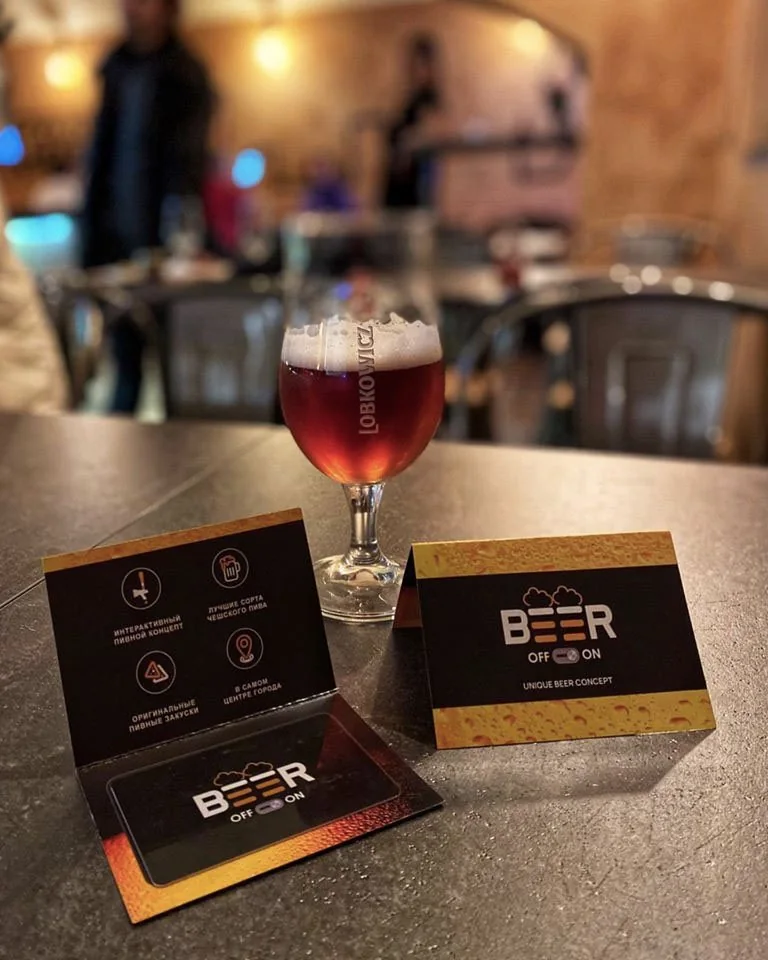 Prague
Beerpoint Praha
Interactive beer bar with self-service taps connected to Gradex Gastro
Hotel Karlín
Hotel
Hotel Zvíkov
Hotel
- Olomouc
Kolej Kateřinská Olomouc
University hall of residence
- Slovakia
Lázeňský resort Bojnice
Spa resort
Details from practice
Small details that save minutes at peak time.
Universal search
Type anything (a name, a code, a supplier’s phone number) and the list filters instantly.
No mouse needed
Ctrl+S saves, Enter jumps to the next field. Back-office work is quick from the keyboard too.
Any period in one click
Day, week, ten-day period, month or the whole year in every report.
Print or PDF
Receipts and sales summaries on a narrow receipt printer, reports on a graphics printer or as a PDF.
Several workstations at once
Tills, kitchen and office work on the network with the same data.
Sales summary
What drives your takings and what is not selling, sorted in one click.
Tills under control
Daily closes, cash books, cash hand-ins and a separate cash wallet for every waiter.
Invoicing
Invoices from sales documents and delivery notes, free-text invoices and payment records.
Frequently asked questions
What editions does Gradex Gastro come in?
Three. Easy covers service, till and invoicing, without stock management and without discounts. Standard adds discounts and stock for a single restaurant. Enterprise is for running multiple restaurants and catering operations.
Is Gradex Gastro suitable for canteens too?
Yes. It suits restaurants, canteens (including those in university halls of residence), hotels and hospitals. Recipes scale to any number of portions, menus can be given validity periods, and the system is integrated with the Resora software for managing university halls of residence.
Can diners order meals online?
Yes. Gradex Gastro has a web interface for ordering meals. Diners see the menu by day with allergens and prices, order a whole week ahead and pay from their credit. Orders go straight into Gradex Gastro. It suits canteens, university halls of residence and workplace catering.
Can it be connected to other systems?
Yes. Gradex Gastro has a REST API and is integrated with the Resora system, which runs hotel software and software for managing university halls of residence.
Does it support sales reporting?
Yes. There is an active connection to the Slovak eKasa system for customers in Slovakia. The module for the Czech EET is included and currently switched off.
Can Gradex Gastro work with self-service beer taps?
Yes. Self-service beer taps connect directly to Gradex Gastro. Guests top up an NFC card, hold it to a tap and pour their own. On the display they see, in real time, their credit go down and their spend in Kč and the amount in ml go up, much like at a petrol pump. This is how the interactive beer bar Beerpoint Prague works.
Does it work on touchscreens?
Yes. The waiter POS menu is designed for touchscreen tills: large buttons, categories and a quantity multiplier. Administration of stock, recipes and menus is done with a mouse and keyboard.
How is a bill split between guests?
In the order detail you split the order into several bills on the same or a different table and print a separate receipt for each. A table’s bills can also be merged.
Does the system deduct ingredients automatically?
Yes, in the Standard and Enterprise editions, according to the recipes. Stock can also be deducted retrospectively, for example for dishes whose recipe you added later.
How does butchery breakdown work?
In the same window as recipes, you switch to butchery breakdown and break an ingredient, such as a whole chicken, down into cuts with their weights. Each cut has its own stock card and the cost is allocated by weight.
Can several people work in the system at once?
Yes. The system runs on a network across several workstations. Even a single stocktake can be filled in by two people at the same time.
How does deployment work?
Get in touch. We will show you the system and agree a deployment that fits your operation. We reply within 24 hours and the first consultation is without obligation.

See Gradex Gastro working for your venue.
We reply within 24 hours. The first consultation is without obligation.
Book a demoor call +420 228 222 092